What Is SSTV IPTV?
If you’ve been searching for SSTV IPTV, you’ve probably come across an app called SS IPTV — one of the most flexible and easy-to-use IPTV players available today.
It’s not a service that provides channels by itself, but rather a media player that allows you to load IPTV playlists, such as M3U links or Xtream codes, from any provider you choose.
This makes SS IPTV a popular choice for users who already have an IPTV subscription — especially from premium providers like British IPTV 4K, known for their stability and 4K content quality.
How SSTV IPTV Works
SSTV IPTV as a Player
SS IPTV acts as a bridge between your IPTV provider and your television. Once you load your IPTV playlist into the app, it automatically organises your channels, movies, and series.
It doesn’t require any special hardware — just your TV or device connected to the internet.
Supported Devices
One of the best things about SSTV IPTV is its wide compatibility. You can install it on:
- Smart TVs (Samsung, LG, Hisense, Philips, Sony, etc.)
- Android devices (TV boxes, tablets, smartphones)
- Amazon Firestick
- Windows PCs (via Android emulators or browser extensions)
How to Install SSTV IPTV on Different Devices
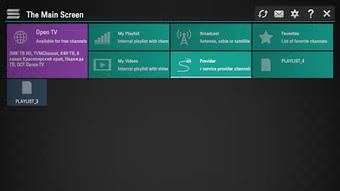
1. Install SS IPTV on Smart TVs
Samsung & LG Smart TVs (WebOS or Tizen)
- Open the TV App Store (LG Content Store or Samsung Smart Hub).
- Search for “SS IPTV”.
- Click Install and wait a few moments.
- Once installed, open the app and go to Content → External Playlist → Add Link.
- Paste your M3U link or Xtream code from British IPTV 4K.
Philips or Android-based TVs
- Go to Google Play Store.
- Search for SS IPTV and install it.
- Launch the app and follow the same process to add your playlist.
2. Install SSTV IPTV on Firestick
- Go to your Firestick Settings → My Fire TV → Developer Options.
- Enable Apps from Unknown Sources.
- Install the Downloader App from the Amazon Store.
- Open Downloader and enter the link:
https://ss-iptv.com/files/ssiptv.apk - Once downloaded, install and open the app.
- Enter your M3U link or Xtream credentials from your IPTV provider (for example, British IPTV 4K).
3. Install SSTV IPTV on Android Devices
- Open Google Play Store.
- Search for SS IPTV or SS IPTV.
- Install the app and launch it.
- Add your playlist using a link or upload file directly from your IPTV provider.
How to Setup Your IPTV Playlist on SSTV IPTV
Once SSTV IPTV is installed, you’ll need to add your IPTV credentials.
Option 1: M3U Playlist
- Open the app
- Go to Settings → Content → External Playlist
- Choose Add Link
- Paste your M3U URL (provided by British IPTV 4K)
- Save and refresh — your channels will appear automatically
Option 2: Xtream Codes Setup
For users who prefer Xtream codes:
- Go to Settings → Connections → Xtream Codes
- Add the following:
- Username
- Password
- Server URL (e.g., from British IPTV 4K)
- Save and enjoy your IPTV channels
Xtream Codes are often easier to manage since they automatically organize live TV, movies, and series into categories.
How to Get Your IPTV Credentials
To get your M3U or Xtream codes, you’ll need an active IPTV subscription.
If you don’t have one yet, visit BritishIPTV4K and request a free trial.
When filling out the form, mention that you’re using SSTV IPTV — our team will send you the correct format (M3U or Xtream) that works perfectly with your app.
SSTV IPTV Review
User Interface
SSTV IPTV offers a clean, simple interface that makes navigation easy for all users — even those who aren’t tech-savvy. Channels load quickly, and you can easily categorize your favorite ones.
Performance
In terms of speed, the app performs very well. With a stable connection and a strong IPTV source like British IPTV 4K, you can enjoy smooth 4K streams with minimal buffering.
Customization
You can customize logos, channel groups, and themes. It’s also compatible with multiple playlists, so you can switch between different IPTV providers if you want.
Drawbacks
The only downside is that SSTV IPTV doesn’t provide EPG (TV Guide) data by itself — you’ll need to load it from your provider or a compatible XML source.
Why Use SSTV IPTV with British IPTV 4K
Pairing SS IPTV with British IPTV 4K gives you the best of both worlds:
- ✅ Smooth 4K streaming quality
- ✅ Stable servers with 99.9% uptime
- ✅ Compatible with all SSTV IPTV devices
- ✅ Free test available before subscribing
- ✅ 24/7 support and instant activation
Unlike free playlists that may expire or buffer constantly, British IPTV 4K ensures a reliable experience from start to finish.
Tips for a Better SSTV IPTV Experience
- Use a wired Ethernet connection instead of Wi-Fi for stability.
- Regularly clear app cache to improve performance.
- Keep your IPTV playlist updated (most providers refresh links every few months).
- Use a VPN if your ISP throttles streaming traffic.
- For best quality, choose British IPTV 4K’s 4K-ready plans.
Final Verdict: Is SSTV IPTV Worth Using?
Yes — SSTV IPTV is one of the most reliable and flexible IPTV apps available today.
It’s 100% free, lightweight, and works on almost any Smart TV or device. Combined with a strong provider like British IPTV 4K, it becomes a powerful home entertainment solution.
Whether you’re watching live channels, on-demand movies, or sports events in 4K, the pairing of SS IPTV and British IPTV 4K ensures a smooth, high-quality experience.
If you’re looking for a stable IPTV setup, start today with a free test at BritishIPTV4K.com, and enjoy TV the modern way.