What Does “Record from IPTV” Really Mean?
When people hear the phrase record from IPTV, they usually think of the classic TV experience — hitting a button to save a movie or show and rewatching it later. But IPTV (Internet Protocol Television) is quite different from traditional broadcasting. It streams live and on-demand TV channels over the internet instead of through satellite or cable, which means recording works in a more digital and controlled way.
To Record from IPTV isn’t as simple as pressing “record” on a remote; it depends on the IPTV service you use, your device, your app, and whether the provider allows recording in the first place. Some services give you built-in DVR features, while others require third-party apps or external devices.
In this article, we’ll go deep into how record from IPTV works, what you need, the legal and technical aspects, and how to do it step-by-step on different devices — all while showing how British IPTV 4K makes this process smoother and more enjoyable.
Can You Record from IPTV?
Yes, you can — but there are a few things to know first. in order to Record from IPTV, it means capturing a live stream (like a sports event or show) and saving it to your device or a cloud-based server so you can watch it later.
However, not all IPTV services allow recording due to licensing or copyright laws. Some channels, especially premium ones, restrict content from being recorded. Others may offer a “catch-up” or “replay” feature instead, allowing you to watch missed programs without recording them manually.
Legal Aspect of Recording IPTV
Recording IPTV content for personal use is generally legal in many regions, as long as you’re not redistributing or reselling the content. The gray area begins when users record copyrighted content and share it online. IPTV providers like British IPTV 4K stay compliant with content distribution laws, so when recording is possible, it’s within the limits of fair use.
How Recording from IPTV Works
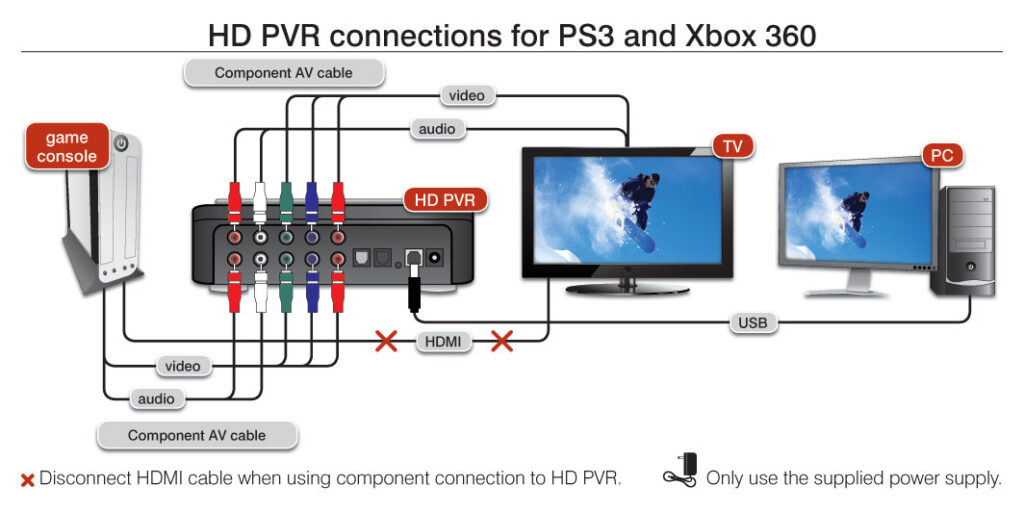
When you record from IPTV, the app or device essentially captures the data packets of the video stream and saves them locally or on a network drive. Depending on your setup, there are two main methods:
1. Software-Based Recording
This is done using apps or IPTV players that support DVR (Digital Video Recorder) functionality. Examples include:
| Software | Supported Devices | Recording Support |
|---|---|---|
| Tivimate | Android | Local recording |
| Perfect Player | Android, Fire TV | Limited recording |
| IPTV Smarters Pro | Android, iOS, PC | Yes (depends on provider) |
| Kodi (PVR Add-ons) | Windows, Android | Yes (advanced setup) |
These apps allow you to record live TV while streaming, as long as your IPTV provider supports it. The recorded files are usually saved in formats like .ts or .mp4 on your device’s storage.
2. Hardware-Based Recording
This involves using external devices such as DVR boxes or USB sticks. These devices can intercept the IPTV stream from a smart TV or set-top box and store it directly.
Devices like MAG Boxes, Enigma2, and Formuler Z series often come with built-in PVR features, making it simple to record and manage content.
What You Need to Record from IPTV
To successfully record from IPTV, you’ll need:
- An IPTV subscription – ideally from a provider like British IPTV 4K, which offers stable, high-quality streams suitable for recording.
- A recording-capable app or device – as mentioned above, such as IPTV Smarters Pro, Tivimate, or a Formuler box.
- Sufficient storage space – IPTV streams are usually HD or 4K, so make sure you have enough memory or external storage.
- Stable internet connection – interruptions during streaming may corrupt your recording.
- Permission or support from your IPTV provider – always verify if recording is allowed.
Step-by-Step: How to Record from IPTV
Step 1: Choose the Right IPTV Player
Use an app like IPTV Smarters Pro or Tivimate. Both support the ability to record live TV, provided your IPTV subscription allows it.
Step 2: Load Your IPTV Playlist or Xtream Codes
Input your playlist URL or Xtream Codes credentials into the player. For British IPTV 4K, this process is seamless and supported on most major players.
Step 3: Navigate to the Channel You Want to Record
Select your desired live channel. You can also set timers for future events (like football matches or live shows).
Step 4: Click the “Record” Button
Start the recording and let the app capture the stream. Make sure your internet connection remains stable throughout.
Step 5: Access Your Recorded Files
Once the recording is done, you’ll find the file saved in your app’s storage folder or designated path. From there, you can transfer it to another device or external drive.
Recording on Different Devices
On Android or Firestick
Use Tivimate or IPTV Smarters Pro. Simply open the app, pick your channel, and hit record. Make sure your Firestick has enough storage or connect an external USB drive.
On Windows or Mac
Apps like VLC Media Player or Kodi can record IPTV streams by enabling the record option under “Media” or via PVR add-ons.
On Smart TVs
Some Smart TVs, like LG and Samsung, offer USB recording for certain apps. However, not all IPTV apps support this. It’s often better to use a dedicated device such as a Formuler Z11 Pro Max with British IPTV 4K.
On MAG or Formuler Boxes
These devices are built for IPTV. They include native DVR features where you can schedule, pause, rewind, and record channels directly to a USB or network drive.
Troubleshooting Common Recording Issues
Sometimes recording doesn’t go as planned. Here are common issues and how to fix them:
| Problem | Cause | Solution |
|---|---|---|
| Recording not starting | Provider restriction | Contact IPTV provider (British IPTV 4K supports most recording apps) |
| Recording stops midway | Internet interruption | Check your connection stability |
| No audio or video | Codec or format issue | Try a different player or update the app |
| Recording too large | High bitrate stream | Use lower-quality stream or compress after recording |
Why Choose British IPTV 4K for Recording
British IPTV 4K is a premium IPTV provider offering over 40,000 live channels and 170,000+ VOD titles. Its servers are stable and optimized for 4K streaming, which is perfect for high-quality recordings.
Other reasons why British IPTV 4K is ideal for users who want to record from IPTV:
- High stability: Minimal buffering and downtime mean cleaner recordings.
- Full device support: Works on Smart TVs, Android, Firestick, Windows, and Formuler boxes.
- Customer compensation: If server issues occur, users receive a backup or replacement code.
- Regular updates: Playlists and channels are refreshed frequently.
When you’re serious about saving your favorite shows, reliability matters — and British IPTV 4K delivers exactly that.
How to Get a Free Trial with British IPTV 4K
Before committing to a subscription, you can try British IPTV 4K for free. Here’s how:
- Visit the official British IPTV 4K website.
- Click on “Request Free Trial.”
- Fill in your email and preferred device type.
- Receive your credentials within minutes.
- Load them into your IPTV player and enjoy streaming — and yes, you can even test recording features during your trial.
FAQ
Do I need a VPN to record from IPTV?
Yes, it’s recommended. A VPN protects your connection, keeps your streaming private, and prevents ISP throttling.
Can I stream and record on multiple screens with one code?
No. Each code is limited to one connection at a time. You’ll need additional codes for multiple screens.
What happens if a recording issue occurs?
British IPTV 4K compensates customers with a backup or a new server connection if a technical issue arises.
Can I record from IPTV on my phone?
Yes, using compatible apps like IPTV Smarters Pro or Tivimate, provided your device has enough storage.
Is recording IPTV legal?
Yes, for personal use only. You should never redistribute or sell the recorded content.
Final Thoughts
The ability to record from IPTV turns your streaming experience into something much more flexible. You can save favorite shows, sports, or movies and enjoy them later — even offline.
With the right setup, proper app, and a trusted provider like British IPTV 4K, recording IPTV becomes effortless and enjoyable. Whether you use a smart TV, Android device, or IPTV box, the key is to choose reliability — and that’s exactly what British IPTV 4K offers.