Introduction
Over the years, Xbox has grown from being just a gaming console to becoming a fully functional home entertainment hub. With powerful hardware, smooth navigation, and access to major app stores, many users now look for the best ways to use iptv for xbox. Whether you own an Xbox One, Xbox Series S, or Xbox Series X, installing IPTV on the console can completely transform your entertainment experience.
In this comprehensive guide, we’ll explore how IPTV works on Xbox, how it differs from IPTV boxes such as Firestick, MAG, Mi Stick, and NVIDIA Shield, and give you a step-by-step installation guide for the best IPTV apps. We’ll also review the performance of iptv for xbox and explain why pairing your console with British IPTV 4K provides the ultimate streaming experience.
Understanding Xbox as an IPTV Device
Before learning how to install iptv for xbox, it’s important to understand what Xbox is and how it functions when compared to other IPTV devices.
What Is Xbox?
According to Microsoft, Xbox is a gaming platform designed to support high-performance games, multimedia applications, and digital streaming. The console family includes:
- Xbox One
- Xbox One S
- Xbox One X
- Xbox Series S
- Xbox Series X
These devices feature:
- Fast processors
- High RAM
- Powerful graphic units
- Robust app support
- Smooth operating system (based on Windows)
This is why the idea of iptv for xbox became popular—Xbox already functions as a digital media center.
How Xbox Differs From IPTV Boxes
Unlike traditional IPTV boxes, Xbox was not originally built for IPTV. But it still offers impressive performance and stability.
Comparison Table: Xbox vs IPTV Devices
| Feature | Xbox | Firestick | NVIDIA Shield | MAG Box | Android Box |
|---|---|---|---|---|---|
| Power & Performance | Very High | Medium | Very High | Medium | Medium |
| IPTV App Support | Good | Excellent | Excellent | Limited | Good |
| Setup Difficulty | Easy | Very Easy | Easy | Hard | Medium |
| Price | Higher | Affordable | High | Medium | Medium |
| Stability | Very High | Medium | Very High | High | Medium |
| Ideal For | Gaming + IPTV | IPTV Only | IPTV + Gaming | IPTV Only | IPTV + Apps |
Strengths of IPTV for Xbox
- Smooth navigation due to powerful hardware
- Great Wi-Fi & Ethernet performance
- Ability to run heavy IPTV apps without lag
- Long device lifespan
- Perfect for HD and 4K streaming
Weaknesses of IPTV for Xbox
- Cannot sideload APK apps (unlike Android)
- Limited IPTV apps on Microsoft Store
- No built-in IPTV decoder
- Sometimes slower to update certain apps
Still, for many people, iptv for xbox is a perfect solution because they already own the console and want to avoid buying extra devices.
Best IPTV Apps for Xbox
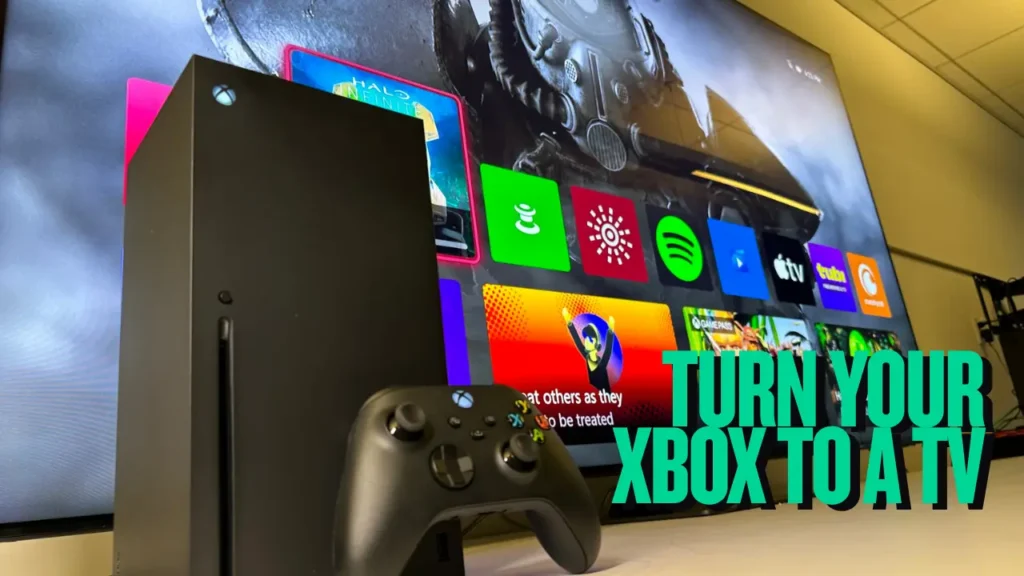
Since Xbox cannot install Android APKs, you must use apps available on the Microsoft Store. These are the best ones:
1. MyIPTV Player (Free)
One of the most popular ways to run iptv for xbox.
Pros:
- Easy to install
- Clean interface
- Stable channel management
- Works with M3U playlists
Cons:
- Basic design
- Limited advanced features
2. Kodi (Official App)
Kodi is one of the most powerful multimedia players in the world.
Pros:
- Highly customizable
- Supports many IPTV add-ons
- Works smoothly on Xbox
Cons:
- Setup can be complicated for beginners
3. VLC Media Player
VLC can load M3U playlists and stream IPTV easily.
Pros:
- Lightweight
- Reliable
- Simple to use
Cons:
- Not as IPTV-optimized
- No EPG (TV Guide)
Step-by-Step Guide: Installing IPTV for Xbox
Here is the simplest installation process using MyIPTV Player, which most users prefer.
Step 1: Turn On Your Xbox
Go to the Home menu.
Step 2: Open Microsoft Store
Search for “MyIPTV Player”.
Step 3: Install the App
Click Install and wait for the process to finish.
Step 4: Open MyIPTV Player
Go to Settings.
Step 5: Add a New Playlist
- Click Add new playlist and EPG source
- Paste your M3U playlist link from British IPTV 4K
- Add your EPG link (TV Guide)
Step 6: Save Settings
After adding the playlist, press Refresh.
Step 7: Start Watching IPTV
Go to Live TV → your channels will appear instantly.
This method works on all Xbox versions and is one of the most stable ways to enjoy IPTV on a console.
Using IPTV on Xbox Through Kodi (Alternative Method)
If you prefer more customization, Kodi is a great choice.
Step-by-Step Setup
Install Kodi
- Go to Microsoft Store
- Search “Kodi”
- Install
Add the IPTV Add-On
Inside Kodi:
- Go to Add-ons
- Choose PVR Clients
- Select PVR IPTV Simple Client
Configure the Add-On
- Set M3U URL from British IPTV 4K
- Set EPG URL
- Save and restart Kodi
Once finished, channels and movies will load automatically.
Best Settings for IPTV on Xbox
To optimize iptv for xbox, make sure to configure these settings:
Use Ethernet Instead of Wi-Fi
Wired internet is always more stable.
Choose the Right Video Decoder
In settings, enable hardware acceleration for smoother playback.
Adjust Buffer Size
Higher buffer = less freezing during peak times.
Use a Reliable IPTV Service
British IPTV 4K ensures:
- 4K quality
- No buffering
- Updated playlists
- Instant activation
Performance Review: IPTV for Xbox
After testing IPTV extensively on Xbox consoles, here is a performance breakdown.
Speed & Responsiveness
Xbox performs extremely well. Navigation is smooth, app loading is fast, and video playback is stable.
Streaming Quality
Thanks to powerful hardware, iptv for xbox handles:
- HD (1080p)
- Full HD
- 60 FPS sports channels
- Even 4K playback (depending on the app)
Stability
The performance depends on the IPTV app used. MyIPTV Player and Kodi are the most stable options.
User Experience
The interface feels premium and easy to use. This makes Xbox one of the best alternatives to a Firestick or Android box.
Comparison: IPTV on Xbox vs Firestick
| Feature | Xbox | Firestick |
|---|---|---|
| Hardware Power | Very High | Medium |
| App Support | Moderate | Very High |
| Sideloading APKs | No | Yes |
| IPTV Performance | Excellent | Good |
| Price | Higher | Low |
Conclusion
If you already own an Xbox, it is 100% worth using it for IPTV. However, if you want full app flexibility, Firestick still offers more options.
Why Choose British IPTV 4K for Xbox?
If you plan to use iptv for xbox, you need a provider that is:
- Stable
- Fast
- Safe
- 4K-ready
- Compatible with MyIPTV Player and Kodi
This is exactly why British IPTV 4K stands out.
Key Advantages
Ultra-Stable Servers
Enjoy lag-free sports and entertainment.
4K & Full HD Channels
Perfect for Xbox Series X and Xbox One X users.
Premium VOD Library
Thousands of movies and series.
Instant Activation
Start watching within minutes.
24/7 Customer Support
Professional help whenever you need it.
Works on All Apps
Compatible with every Xbox IPTV player.
Frequently Asked Questions
Does Xbox support IPTV?
Yes, through apps like MyIPTV Player, VLC, and Kodi.
Can I install APKs on Xbox?
No. Xbox uses the Microsoft Store only.
Is IPTV on Xbox lag-free?
With a good provider such as British IPTV 4K, absolutely.
Which app is the best for IPTV on Xbox?
MyIPTV Player is the easiest, while Kodi is the most powerful.
Can I watch 4K channels on Xbox?
Yes, as long as your IPTV provider supports 4K.
Do I need a subscription to use IPTV for Xbox?
Free apps exist, but a premium provider ensures stability and quality.
Final Thoughts
Using iptv for xbox is one of the most underrated ways to enjoy premium streaming. Xbox consoles offer powerful hardware, smooth navigation, and great compatibility with IPTV apps. Whether you use MyIPTV Player, Kodi, or VLC, the experience is far better than many cheap IPTV boxes.
However, the key to unlocking the full potential of iptv for xbox is choosing a professional IPTV provider. With British IPTV 4K, you benefit from:
- 4K channels
- Zero buffering
- Massive VOD library
- Easy setup on Xbox
- Fast customer support