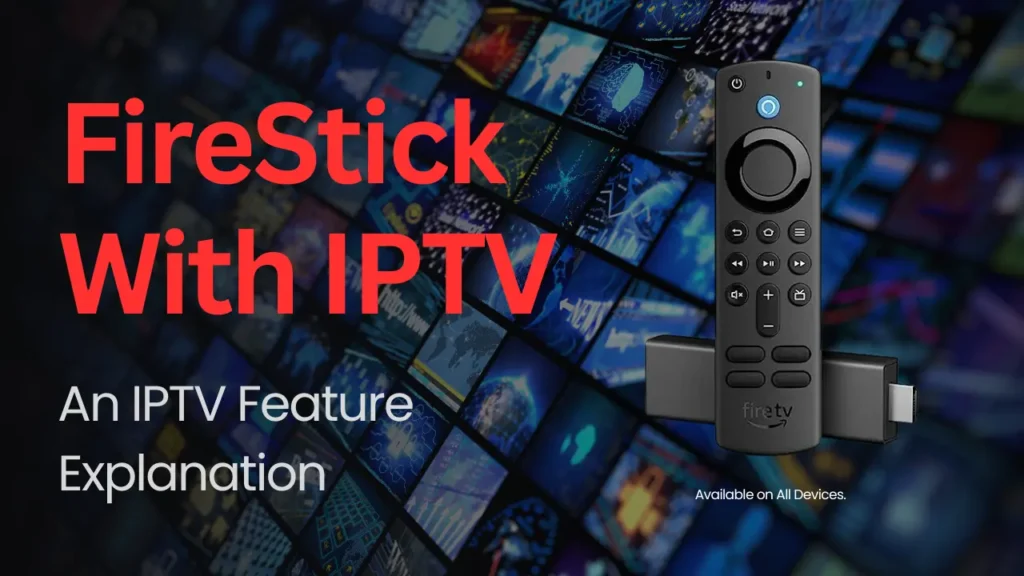
Streaming has changed the way people watch television, and one of the most popular solutions today is Firestick with IPTV. The Firestick device from Amazon makes it easy to stream apps and content on any TV, while IPTV (Internet Protocol Television) gives you access to thousands of live channels, movies, and on-demand shows over the internet.
But how do you actually set up Firestick with IPTV? And why is British IPTV 4K one of the most trusted providers to get started with? In this guide, we’ll break down everything step by step, from connecting your Firestick to installing IPTV apps, to finally enjoying a world of entertainment.
What is Firestick with IPTV?
At its core, the Amazon Firestick is a small streaming device that plugs into the HDMI port of your television. Once connected, it transforms your regular TV into a smart TV. With IPTV apps installed, the Firestick becomes a powerful hub for live TV, sports, movies, and series.
Unlike traditional satellite or cable, IPTV streams content directly through the internet. This means you can enjoy global channels without limits—perfect for sports fans, movie lovers, or anyone looking for more variety.
Why Choose Firestick with IPTV?
Ease of Use
The Firestick is beginner-friendly, even for people who are not tech-savvy.
Portability
You can carry it anywhere, plug it into any TV with Wi-Fi, and enjoy your IPTV subscription on the go.
Compatibility
Most popular IPTV apps, such as IPTV Smarters and IBO Player Pro, work flawlessly on Firestick.
Cost-Effective
Pairing Firestick with IPTV services like British IPTV 4K gives you premium quality streaming at a fraction of traditional TV prices.
Step-by-Step Guide to Setup Firestick with IPTV
Here’s a detailed breakdown of how to install IPTV apps on Firestick and start streaming.
Step 1: Connect and Set Up Your Firestick
Plugging In the Device
- Insert the Firestick into your TV’s HDMI port.
- Connect it to the power adapter using the USB cable provided.
- Select the HDMI input channel on your TV.
Initial Configuration
- Follow the on-screen instructions to connect your Firestick to Wi-Fi.
- Sign in with your Amazon account to unlock app installations.
Step 2: Install the Downloader App
The Downloader app allows you to install third-party apps that aren’t available on the Amazon Store.
Installation Process
- From your Firestick home screen, go to Search.
- Type Downloader.
- Install the app from the Amazon App Store.
Step 3: Enable Apps from Unknown Sources
Since IPTV apps are usually downloaded outside the official store, you must enable this option.
Settings Configuration
- Go to Settings > My Fire TV > Developer Options.
- Enable Apps from Unknown Sources for Downloader.
Step 4: Install an IPTV Player
You now need an app that can load your IPTV subscription. Two of the most popular are IPTV Smarters and IBO Player Pro.
IPTV Smarters Setup
- Open Downloader.
- Enter the IPTV Smarters APK link.
- Install the app and open it.
IBO Player Pro Setup
For a visual guide, you can follow this tutorial:
How to Install IBO Pro on Firestick.
Step 5: Get Your IPTV Subscription
An app alone won’t give you access to TV channels—you need a subscription.
Why British IPTV 4K?
- Offers a free 24-hour trial.
- Provides both Xtream Codes and M3U playlists, compatible with most IPTV apps.
- Premium servers with anti-freeze technology for smooth playback.
To get started:
- Visit BritishIPTV4k.com.
- Request a free trial.
- Receive your login details by email.
Step 6: Enter Your Subscription Details
On IPTV Smarters
- Open the app.
- Select Xtream Codes API.
- Enter username, password, and server URL from British IPTV 4K.
On IBO Player Pro
- Launch the app.
- Use the MAC address provided.
- Upload your playlist via the IBO Player portal.
Step 7: Enjoy Firestick with IPTV
Once everything is set up, you can enjoy:
- Live TV channels worldwide.
- Video on Demand (VOD) with movies and series.
- Sports in high resolution.
- Smooth performance with 4K image quality.
Common Issues with Firestick and IPTV
Even the best setups can face small issues. Here’s how to fix them:
Buffering Problems
- Check your internet connection.
- Restart your Firestick.
- Use British IPTV 4K’s premium server for less congestion.
Sync Issues (Sound/Image)
- Ensure HDMI cables are connected properly.
- Restart the app.
- Try switching apps (e.g., from IPTV Smarters to IBO Player).
App Crashes
- Clear cache from Firestick settings.
- Update the IPTV app to the latest version.
Benefits of Using British IPTV 4K on Firestick
Reliable Support
24/7 customer support ensures you’re never stuck during setup.
Premium Quality
With 40,000+ channels, 4K streams, and anti-freeze servers, British IPTV 4K stands out in the IPTV industry.
Free Trial
Before paying, you get to test the service risk-free for 24 hours.
FAQ – Firestick with IPTV
1. What does Firestick with IPTV mean?
It means using an Amazon Firestick with an IPTV app to stream live TV, sports, movies, and VOD through the internet instead of cable.
2. Do I need a subscription to use a Firestick with IPTV?
Yes. IPTV apps are just players. You need an IPTV subscription, like British IPTV 4K, to access channels and on-demand content.
3. Which IPTV apps work best on Firestick?
Popular apps include IPTV Smarters and IBO Player Pro. They’re easy to install, stable, and fully compatible with Firestick devices.
4. Why is British IPTV 4K good for Firestick?
British IPTV 4K offers 4K quality, anti-freeze servers, fast setup, and a free 24-hour trial, making it ideal for Firestick users.
5. How can I fix buffering on Firestick IPTV?
Restart the Firestick, check internet speed, clear app cache, and use a premium IPTV provider to reduce buffering and freezes.
Conclusion
Pairing Firestick with IPTV is one of the smartest ways to unlock endless entertainment. The setup is straightforward, and with apps like IPTV Smarters or IBO Player Pro, you can access thousands of channels in just a few minutes.
By choosing British IPTV 4K, you not only enjoy premium-quality channels but also peace of mind with anti-freeze technology and 24/7 support. So why wait? Get your Firestick ready, sign up for a free trial, and transform your TV viewing experience today.