Few things are more frustrating than sitting down to watch your favourite channels, only to realise that IPTV not working on WiFi has ruined the experience. The app opens, the playlist loads, but channels freeze, buffer endlessly, or don’t load at all. Strangely enough, everything may work perfectly on mobile data — which makes the problem even more confusing.
If you’ve searched for iptv not working on wifi, you’re not alone. This is one of the most common IPTV issues worldwide, and the good news is that in most cases, it’s fixable.
In this complete guide, we’ll break down:
- Why IPTV stops working on WiFi
- How to confirm if WiFi is the real issue
- Why it works on mobile data but not WiFi
- ISP blocking, router problems, and DNS issues
- Step-by-step solutions that actually work
All while showing how a premium service like British IPTV 4K minimizes these problems.
Understanding How IPTV Uses Your Internet
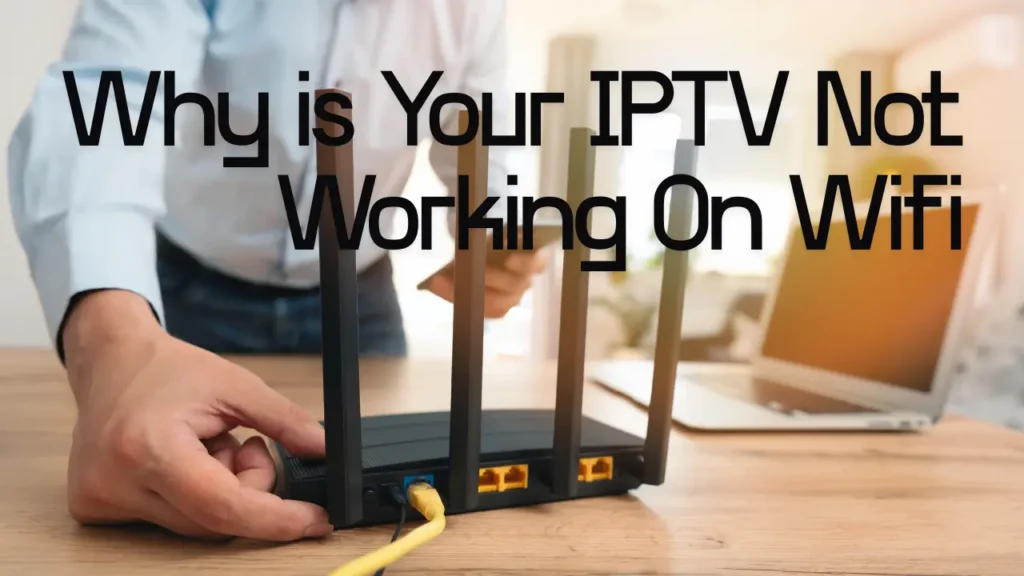
Before diagnosing iptv not working on wifi, it’s important to understand how IPTV works.
How IPTV Streams Content
IPTV delivers live TV and VOD through:
- Continuous data streams
- Real-time packet delivery
- Stable connections rather than raw speed
Unlike YouTube or Netflix, IPTV:
- Doesn’t preload much data
- Is more sensitive to packet loss
- Requires stable routing to the IPTV server
This is why most IPTV issues are often appear only on WiFi which causes the iptv not working on wifi trouble.
How to Confirm It’s a WiFi Issue
Test IPTV on Mobile Data
The first test is simple:
- Disconnect from WiFi
- Turn on mobile data (4G or 5G)
- Open your IPTV app
if doesn’t work with mobile data as well then here’s your article, but If IPTV works perfectly on mobile data but fails on WiFi, then iptv not working on wifi is almost certainly caused by:
- Router configuration
- ISP restrictions
- DNS or IP blocking
Common Symptoms of IPTV Not Working on WiFi
- Channels stuck on loading
- Black screen with spinning icon
- Frequent buffering
- Works at night but not daytime
- Works on mobile hotspot but not home WiFi
These patterns strongly point to network-level issues.
Why IPTV Works on Mobile Network but Not WiFi
This is one of the biggest clues.
Mobile networks:
- Use different routing paths
- Rarely block IPTV traffic
- Rotate IP addresses frequently
Home WiFi:
- Uses a fixed public IP
- Goes through ISP-level filters
- Is more likely to be traffic-shaped
So when users say iptv not working on wifi, the WiFi itself isn’t always broken — the ISP path might be.
Main Reasons IPTV Doesn’t Work on WiFi
ISP Blocking or Throttling
Many ISPs block or throttle IPTV traffic:
- Based on IP ranges
- Based on streaming ports
- Based on DNS requests
This doesn’t mean IPTV is illegal by default — it’s often automatic traffic filtering.
Router DNS Issues
Your router may be using:
- ISP-provided DNS
- Outdated DNS records
- DNS that blocks IPTV domains
This alone can cause IPTV streams to fail.
Weak WiFi Signal or Interference
Even fast internet won’t help if:
- WiFi signal is weak
- Walls block the signal
- Multiple devices overload the router
IPTV is sensitive to packet loss, not just speed.
Router Firmware or Hardware Limits
Older routers struggle with:
- Continuous UDP traffic
- Large IPTV playlists
- Multiple simultaneous streams
This is a silent cause of iptv not working on wifi.
IPv6 Conflicts
Some IPTV servers work best on IPv4.
If your router prioritizes IPv6, connections may fail or partially load.
How to Detect If Your IP Is Blocked
One of the most effective checks:
Step-by-Step IP Check
- Connect your phone to the same WiFi
- Open your browser
- Visit:
whatismyipaddress - Take a screenshot of:
- IPv4 address
- ISP name
- Send this information to your IPTV provider
A professional provider like British IPTV 4K can quickly verify whether your IP is blocked on the server side.
Quick Fixes to Try First
Restart Everything
- Restart modem
- Restart router
- Restart IPTV device
This refreshes:
- IP address
- Routing tables
- Network cache
Switch WiFi Band
If your router supports:
- 2.4GHz → better range
- 5GHz → better speed
Test IPTV on both bands.
Reduce Network Load
Pause:
- Downloads
- Cloud backups
- Streaming on other devices
IPTV prefers stability over raw bandwidth.
Advanced Solutions for IPTV Not Working on WiFi
Change DNS Settings
Manually set DNS on your router or device:
- Google DNS
- Cloudflare DNS
This often bypasses ISP DNS filtering.
Disable IPv6 Temporarily
In router settings:
- Disable IPv6
- Restart router
- Test IPTV again
This fixes many unexplained IPTV failures.
Use Ethernet Instead of WiFi
A wired connection:
- Eliminates interference
- Reduces packet loss
- Improves stream stability
This is one of the best permanent solutions.
Using a VPN: When and Why
A VPN can help if:
- Your ISP blocks IPTV
- Routing is unstable
- Your IP is blacklisted
When VPN Helps
- IPTV works instantly after VPN is on
- Buffers disappear
- Channels load faster
When VPN Doesn’t Help
- Poor VPN quality
- Overloaded VPN servers
- Low device performance
A VPN is a tool, not magic — it must be used correctly.
Does IPTV Work Better on Mobile Hotspot?
Yes, often it does.
Why?
- Mobile networks don’t throttle IPTV
- NAT routing changes frequently
- No ISP IPTV filtering
If IPTV works on hotspot but not WiFi, it confirms iptv not working on wifi is network-related.
Device-Specific WiFi Issues
Firestick
- Weak internal WiFi antenna
- Sensitive to interference
- Benefits greatly from Ethernet adapter
Android TV Boxes
- Vary in WiFi quality
- Cheap models struggle with IPTV
Smart TVs
- Limited networking options
- Often outdated firmware
Why Server Quality Still Matters
Even with perfect WiFi:
- Weak IPTV servers buffer
- Overloaded servers fail
- Poor routing causes drops
British IPTV 4K focuses on:
- Optimized server routing
- Load-balanced streams
- ISP-friendly configurations
This reduces WiFi-related complaints significantly.
How British IPTV 4K Helps Fix WiFi Issues
- Server-side IP checks
- Multiple routing paths
- Optimized Xtream connections
- Professional technical support
Instead of blaming users, issues are diagnosed properly.
Troubleshooting Checklist
| Test | Result |
|---|---|
| Works on mobile data | ✔ Confirms WiFi issue |
| Works with VPN | ✔ ISP blocking |
| Works on Ethernet | ✔ WiFi interference |
| Works at night only | ✔ ISP throttling |
| Fails on all networks | ✔ Server or app issue |
Frequently Asked Questions
Why is IPTV not working on WiFi but YouTube works?
YouTube buffers content; IPTV streams live data and is more sensitive.
Can changing router fix IPTV issues?
Yes, modern routers handle IPTV traffic better.
Is IPTV blocked by default?
Not always, but some ISPs restrict it automatically.
Does speed matter?
Stability matters more than speed.
Final Thoughts
If you’re facing iptv not working on wifi, don’t panic. In most cases, the problem is not the IPTV app, but the network path between your WiFi and the IPTV server.
By:
- Testing mobile data
- Checking your public IP
- Adjusting DNS
- Using Ethernet or VPN
- Choosing a reliable IPTV provider
You can eliminate 90% of WiFi-related IPTV issues.
With stable infrastructure and expert support, British IPTV 4K is designed to work smoothly even on challenging WiFi networks.