Introduction: Understanding the “Virgin Media Block IPTV” Issue
The phrase “Virgin Media block IPTV” has become common among IPTV users across the UK. Many subscribers suddenly find their IPTV streams buffering, freezing, or not loading at all—especially when using Virgin Media as their internet provider.
If you’re wondering why this happens, whether it’s legal, and how to fix it, you’re in the right place. This guide will explain the full picture: what causes this block, how it works technically, how to tell if your IPTV issue is due to your ISP or your app, and what you can do to enjoy your IPTV service smoothly—especially with reliable providers like British IPTV 4K.
What Does “Virgin Media Block IPTV” Mean?
In simple terms, “Virgin Media block IPTV” refers to Virgin Media’s internet service provider (ISP) applying restrictions that prevent access to IPTV streams or servers. This can happen intentionally—due to copyright filtering—or unintentionally, because of security and bandwidth management systems.
When Virgin Media block IPTV, you might experience:
- IPTV apps not loading or showing “server not found.”
- Channels freezing every few seconds.
- Videos buffering indefinitely despite fast internet.
- M3U links or Xtream Codes refusing to connect.
The same issue can sometimes occur with other ISPs like BT, Sky, or TalkTalk, but Virgin Media is often the most aggressive in its content filtering.
Why Does Virgin Media Block IPTV?
1. Legal Pressure and Copyright Compliance
Virgin Media, like all major ISPs in the UK, is legally required to comply with court orders related to copyright protection. The High Court of the UK frequently issues injunctions instructing ISPs to block IP addresses linked to unlicensed streaming services.
These injunctions mainly target illegal or unlicensed IPTV servers that provide copyrighted material without proper rights. To comply, Virgin Media automatically filters and blocks access to those server addresses.
2. Automatic Filtering Systems
Even if your IPTV service is legitimate, Virgin Media’s automatic filtering system (known as Web Safe or Child Safe) may flag the IPTV connection as “unsafe” or “suspicious.” This leads to blocked ports or throttled bandwidth.
3. Network Traffic Shaping
Virgin Media uses traffic management technology to balance bandwidth usage across its network. IPTV streams—especially 4K ones—consume high data rates. During peak hours, Virgin Media may throttle this type of traffic to maintain stability for all users.
How to Tell If It’s Virgin Media Block IPTV
Before jumping to conclusions, it’s essential to confirm that Virgin Media block IPTV and Your IPTV is not down or anything like that. Sometimes, the issue may come from your IPTV provider, your device, or even your app settings.
Here’s how to diagnose it step by step:
| Symptom | Possible Cause | Test |
|---|---|---|
| IPTV app loads but channels buffer | Internet speed drop | Run a speed test (needs 25Mbps+ for 4K) |
| IPTV app won’t connect to the server | ISP block or wrong portal | Try on mobile data using hotspot |
| Some channels work, others don’t | Server issue | Contact IPTV provider support |
| IPTV freezes during peak hours only | ISP throttling | Try using a VPN and see if it improves |
| IPTV app shows “invalid login” | App cache or credentials issue | Clear app cache or reinstall |
If your IPTV works fine when you switch to mobile data but fails on Virgin Media Wi-Fi, then it’s almost certainly Virgin Media Block IPTV.
Legal vs. Technical Perspective
From a Legal View
Virgin Media’s blocking activity is mainly based on legal compliance with anti-piracy regulations. However, not all IPTV services are illegal. Some providers, such as British IPTV 4K, obtain proper broadcasting permissions and distribute channels through authorized partnerships.
It’s important for users to:
- Avoid free or suspicious IPTV services with no official website.
- Choose verified premium providers that are transparent about their sources.
- Understand that using VPNs to bypass censorship is legal, as long as the IPTV itself operates lawfully.
From a Technical View
Virgin Media block IPTV mainly through:
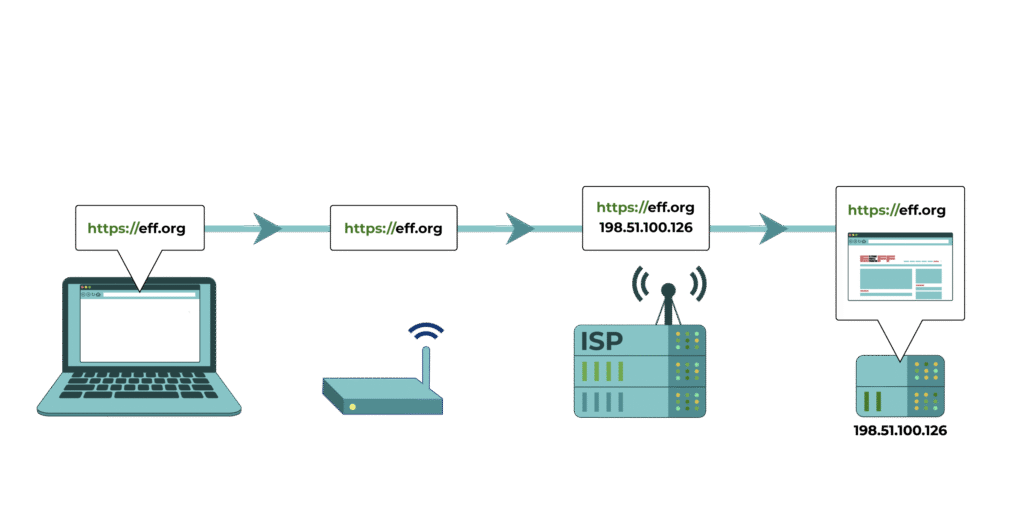
- DNS filtering (blocking specific domain names)
- IP blocking (blacklisting certain servers)
- Deep Packet Inspection (DPI) (analyzing data patterns to identify IPTV streams)
- Port blocking (preventing the connection to specific IPTV ports like 8080 or 25461)
These methods vary depending on the type of service and the region.
How to Fix “Virgin Media Block IPTV”
1. Use a VPN (Virtual Private Network)
The most effective way to bypass the “Virgin Media block IPTV” problem is to use a VPN.
A VPN encrypts your internet connection and routes it through a secure server in another country, making it impossible for Virgin Media to detect or block your IPTV activity.
Recommended Features for a VPN:
- High-speed servers (for HD & 4K streaming)
- No bandwidth limits
- Servers in the UK, Europe, and USA
- Dedicated apps for Firestick, Android, and Smart TVs
Examples: NordVPN, Surfshark, or ExpressVPN are known to work well for IPTV.
2. Change DNS Settings
Virgin Media’s default DNS servers often apply filters that block IPTV connections. Changing to a public DNS like Google or Cloudflare can fix it.
Google DNS:
- Primary: 8.8.8.8
- Secondary: 8.8.4.4
Cloudflare DNS:
- Primary: 1.1.1.1
- Secondary: 1.0.0.1
After changing DNS, restart your router and IPTV device.
3. Disable Web Safe / Child Safe Filters
Log in to your Virgin Media account, go to the Web Safe section, and turn off all filters. These filters often block IPTV domains mistakenly.
4. Use Mobile Hotspot as a Test
Connect your IPTV device (Smart TV or Firestick) to your mobile phone’s hotspot.
If IPTV works perfectly on mobile data but fails on Virgin Media Wi-Fi, the block is confirmed.
5. Contact Your IPTV Provider
Reliable providers like British IPTV 4K can switch your connection to a different server or provide backup portal URLs that work with Virgin Media.
They often offer multiple servers (Premium, Backup, and Basic), ensuring access even when one gets filtered.
Device-Specific Fixes for Virgin Media IPTV Blocking
On Smart TVs (Samsung, LG, Android TV)
- Go to network settings → DNS → set manually (use Google DNS).
- Disable any parental control or safety filters in your router.
- If your IPTV app (e.g., SmartOne, Duplex, or IPTV Smarters) still doesn’t load, connect via VPN on the router.
On Firestick
- Install Downloader and sideload a VPN (e.g., Surfshark).
- Connect to a UK or Netherlands server.
- Reopen the IPTV app and test the stream.
On Android / iPhone
- Install a VPN app and connect before opening your IPTV player.
- Clear cache of the IPTV app if connection still fails.
On MAG / Enigma Devices
If you’re using a portal URL, ask your provider for an updated portal address or one on a different port number.
Changing to an alternate URL often resolves blocks instantly.
Technical Deep Dive: How Virgin Media Identifies IPTV
ISPs like Virgin Media monitor data packets moving across their network. While they don’t see what you’re watching, they can detect traffic patterns typical of streaming protocols like RTSP, HTTP Live Streaming (HLS), or UDP multicast.
They compare this activity with a database of blocked IPTV server IPs (provided by copyright agencies). When a match is found, your connection is either throttled or denied entirely which results in Virgin Media Block IPTV.
VPNs bypass this because they encrypt the traffic, so Virgin Media cannot identify it as IPTV.
How British IPTV 4K Solves These Problems
At British IPTV 4K, reliability is a top priority. The service offers:
- Multiple server options (UK, EU, and global routes)
- Premium infrastructure with anti-block technology
- Support for all devices (Firestick, Android, Smart TVs)
- Fast customer support that provides backup links instantly if a block occurs
With a VPN or smart DNS setup, British IPTV 4K ensures seamless access even under strict ISP conditions.
Comparing Solutions: What Works Best
| Solution | Difficulty | Effectiveness | Cost |
|---|---|---|---|
| VPN | Easy | ★★★★★ | $3–$10/month |
| Change DNS | Medium | ★★★ | Free |
| Disable Web Safe | Easy | ★★★ | Free |
| Backup Server | Easy | ★★★★★ | Included in IPTV plan |
| Mobile Hotspot | Temporary | ★★ | Depends on data plan |
Frequently Asked Questions (FAQ)
Q1: Why does Virgin Media block IPTV?
A: Mainly to comply with UK court orders and prevent access to illegal streams. However, it can sometimes mistakenly block legitimate IPTV services too.
Q2: Is using IPTV with Virgin Media illegal?
A: No, using IPTV isn’t illegal as long as the service provider is licensed—like British IPTV 4K.
Q3: Can a VPN really fix it when Virgin Media Block IPTV?
A: Yes. VPNs mask your traffic and make it impossible for Virgin Media to identify or block IPTV streams.
Q4: How can I know if my IPTV provider is down or it’s my ISP?
A: Try using mobile data or a VPN. If it works, it’s Virgin Media blocking the service.
Q5: What’s the best VPN for IPTV on Firestick or Smart TV?
A: Surfshark, NordVPN, and ExpressVPN are reliable and easy to install on most IPTV devices.
Q6: Does British IPTV 4K get blocked by Virgin Media?
A: No, because it uses optimized servers and backup links that remain accessible even under filtering.
Conclusion
The issue of “Virgin Media block IPTV” is a growing concern among UK streamers. While the block often stems from copyright enforcement, it can impact legitimate IPTV users as well. Understanding the legal and technical reasons behind it helps you diagnose the problem and apply the right solution.
Whether you use a VPN, change DNS settings, or switch to a reliable provider like British IPTV 4K, you can enjoy uninterrupted access to your favorite channels—securely and legally.
If you’re tired of constant buffering or connection errors, it’s time to upgrade to a premium IPTV experience that works flawlessly with Virgin Media.